15. Exercise 1: Launch Redshift Cluster
Launching a Redshift Cluster in the AWS Console
- Follow the instructions below to create a Redshift cluster
- Use the query editor to create a table and insert data
- Delete the cluster
Note: The steps below were introduced in lesson 2. You can use the IAM role and security group created in the last lesson.
Launch a Redshift Cluster
WARNING: The cluster that you are about to launch will be live, and you will be charged the standard Amazon Redshift usage fees for the cluster until you delete it. Make sure to delete your cluster each time you're finished working to avoid large, unexpected costs. Instructions on deleting your cluster are included on the last page. You can always launch a new cluster, so don't leave your Redshift cluster running overnight or throughout the week if you don't need to.
- Sign in to the AWS Management Console and open the Amazon Redshift console at https://console.aws.amazon.com/redshift/.
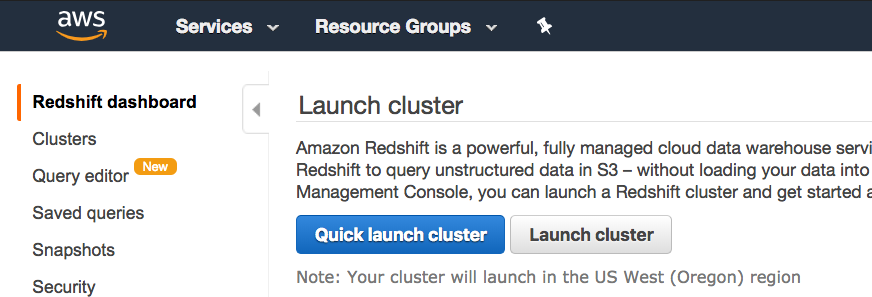
- On the Amazon Redshift Dashboard, choose Launch cluster.
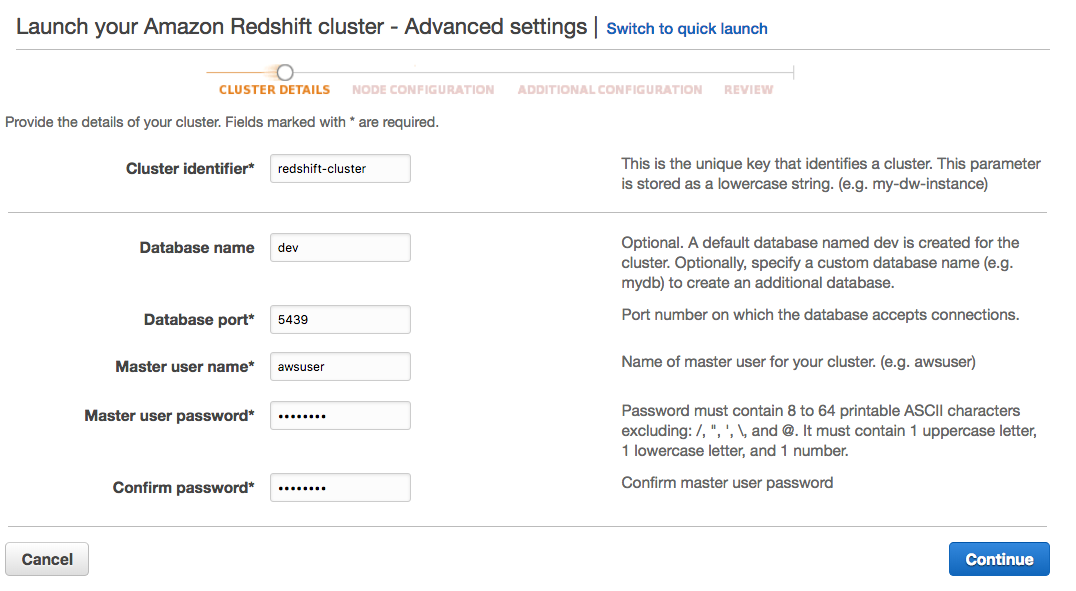
- On the Cluster details page, enter the following values and then choose Continue:
- Cluster identifier: Enter
redshift-cluster. - Database name: Enter
dev. - Database port: Enter
5439. - Master user name: Enter
awsuser. - Master user password and Confirm password: Enter a password for the master user account.
- Cluster identifier: Enter
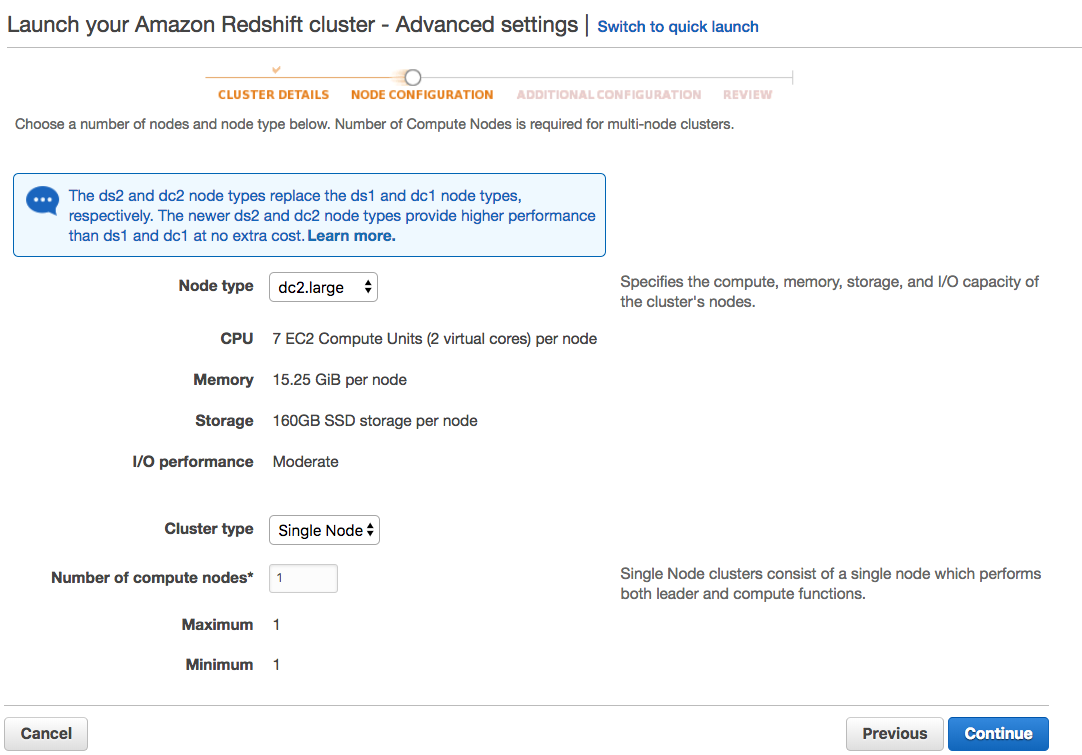
- On the Node Configuration page, accept the default values and choose Continue.
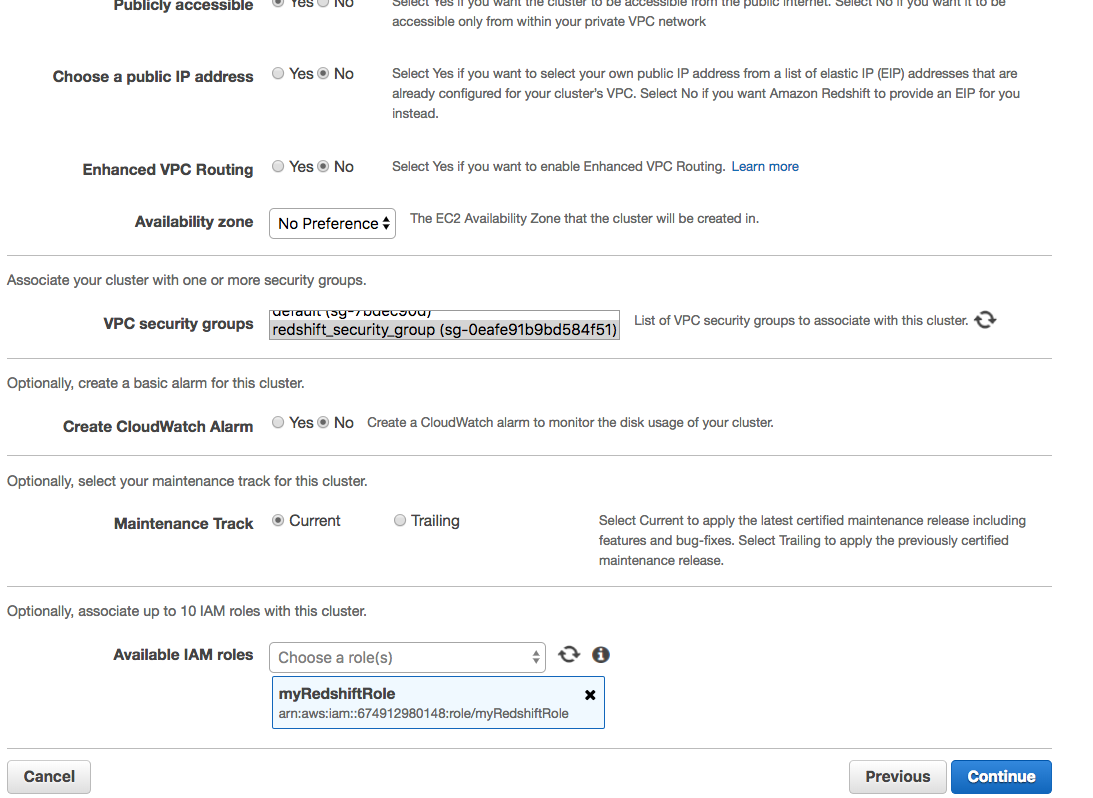
On the Additional Configuration page, enter the following values:
- VPC security groups: redshift_security_group
- Available IAM roles: myRedshiftRole
Choose Continue.
- Review your Cluster configuration and choose Launch cluster.
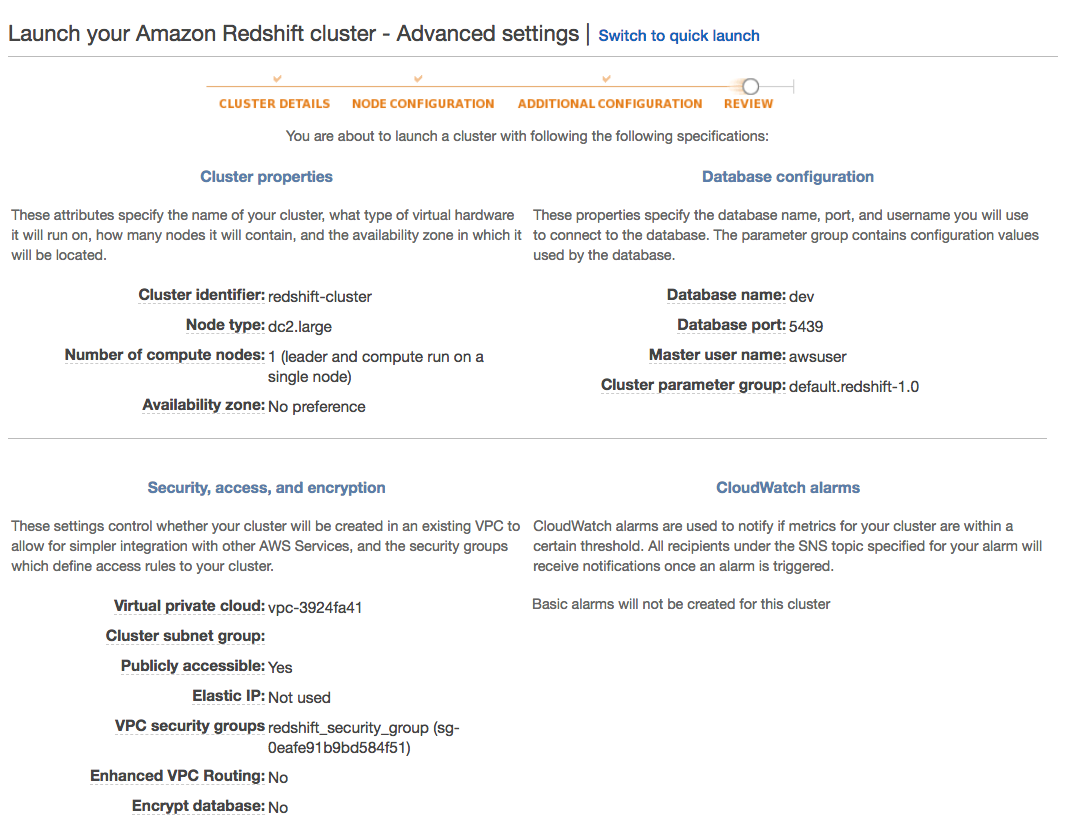

- A confirmation page will appear and the cluster will take a few minutes to finish. Choose Clusters in the left navigation pane to return to the list of clusters.
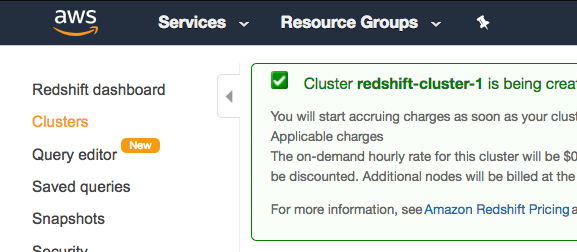
- On the Clusters page, look at the cluster that you just launched and review the Cluster Status information. Make sure that the Cluster Status is available and the Database Health is healthy before you try to connect to the database later. You can expect this to take 5-10 minutes.


Delete a Redshift Cluster
Make sure to delete your cluster each time you're finished working to avoid large, unexpected costs. You can always launch a new cluster, so don't leave it running overnight or throughout the week if you don't need to.
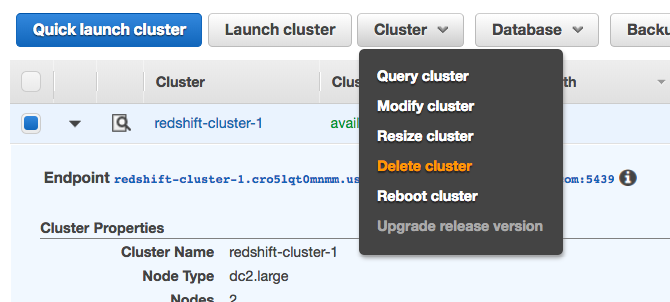
- On the Clusters page of your Amazon Redshift console, click on the box next to your cluster to select it, and then click on Cluster > Delete cluster.
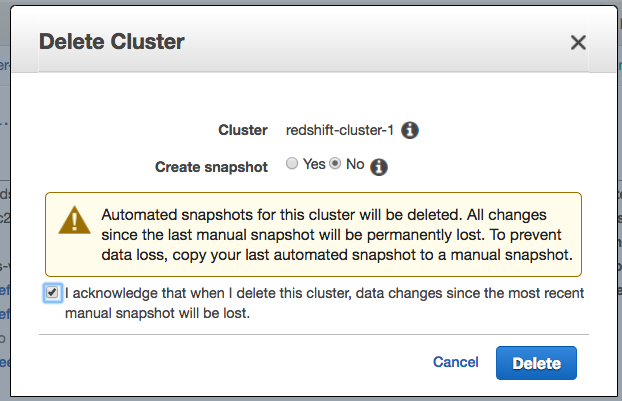
- You can choose No for Create snapshot, check the box that you acknowledge this, and then choose Delete.
- Your cluster will change it's status to deleting, and then disappear from your Cluster list once it's finished deleting. You'll no longer be charged for this cluster.
